
By setting up MFA, you add an extra layer of security to your Microsoft 365 account sign-in. For example, you first enter your password and, when prompted, you also type a dynamically generated verification code provided by an authenticator app or sent to your phone.
1. Sign in to Microsoft 365 with your work or school account with your password like you normally do. After you choose Sign in, you'll be prompted for more information.
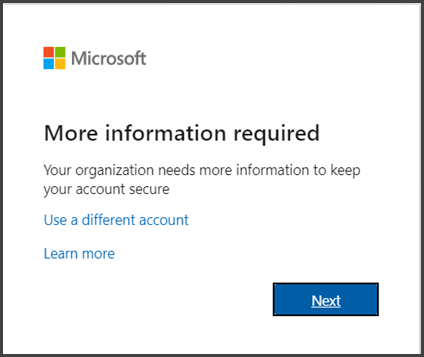
2. Choose Next.
3. The default authentication method is to use the free Microsoft Authenticator app. If you have it installed on your mobile device, select Next and follow the prompts to add this account. If you don't have it installed there is a link provided to download it.
If you would rather use SMS messages sent to your phone instead, select I want to set up a different method. Microsoft 365 will ask for your mobile number, then send you an SMS message containing a 6-digit code to verify your device.
Tip: For a faster, and more secure, experience we recommend using an authenticator app rather than SMS verification.
4. Once you complete the instructions to specify your additional verification method, the next time you sign in to Microsoft 365, you'll be prompted to provide the additional verification information or action, such as typing the verification code provided by your authenticator app or sent to you by text message.
Note: Generally you'll only need the additional verification method the first time you sign into a new app or device, or after you've changed your password. You will need to authenticate each time you login to Office365 through the web browser.
Registration and management of FIDO2 security keys
- Browse to https://myprofile.microsoft.com or directly, https://aka.ms/mysecurityinfo
- Sign in if not already.
- Click Security Info.
- If you already have at least one Multi-Factor Authentication method registered, you can immediately register a FIDO2 USB security key.
- If you don't have at least one Multi-Factor Authentication method registered, you must first add one.
- WNPA IT Support can issue a Temporary Access Pass, if no phone is available, to allow you to register a FIDO2 Security key, please reach out at 520-789-7415.
- Add a FIDO2 Security key by clicking Add method and choosing Security key.
- Choose USB device.
- Have your key ready and choose Next.
- A box will appear and ask you to create/enter a PIN for your security key, then perform the required gesture for the key, either biometric or touch.
- You will be returned to the combined registration experience and asked to provide a meaningful name for the key so the user can identify which one if they have multiple. Click Next.
- Click Done to complete the process.
For any needed keys, please submit a transfer order from the Warehouse (990).
- ALU: 055367 - FIDO SECURITY KEY USB-A NFC (for any RP Install Site)
- ALU: 055368 - FIDO SECURITY KEY USB-C NFC (for anyone with USB-C ports or 2022 RP Install/Refresh Sites)
For information on signing in using this two-step verification, see Sign in to your WNAP.org account using your two-step verification method.
Comments
0 comments
Article is closed for comments.