
If you have full access permission to a shared mailbox that appears in the address book, you can use Outlook Web App or a desktop version of Outlook to open that mailbox.
Why use shared mailboxes? A shared mailbox makes it easy for a specific group of people to monitor and send emails from a public email address like purchasing@wnpa.org or HOBO@wnpa.org. When a person in the group replies to a message sent to the shared mailbox, the reply appears to be from the shared mailbox, not from the individual person. You can also use the shared mailbox as a shared team calendar.
Important: WNPA IT has to create the shared mailbox and add you to the group of users before you can use it. If you feel that you should be included in a specific group, please submit a HelpDesk ticket requesting access.
This how-to will cover the main tasks in accessing the shared mailbox:
Add a shared mailbox so it displays under your primary mailbox
If you want to monitor the email from your primary mailbox and the shared mailbox at the same time, use this method. In addition, after you complete this task, the shared mailbox and its folders are displayed in the left navigation pane each time you open Outlook Web App (https://outlook.office365.com).
1. Sign in to your account in Outlook Web App (https://outlook.office365.com).
2. Right-click the Folders dropdown in the left navigation pane, and then choose Add shared folder.
3. In the Add shared folder dialog box, type the name or email address of someone who has shared a mailbox with you, and then select Add. Generally, the Park's @wnpa.org email address.
The shared mailbox displays in your Folder list in Outlook Web App. You can expand or collapse the shared mailbox folders as you can with your primary mailbox. You also can remove the shared mailbox from your Folder list. To remove it, right-click the shared mailbox, and then select Remove shared folder.
Open a shared mailbox in a separate browser window
Use this method if you want to view and manage the email for the shared mailbox in its own browser window.
-
Sign in to your account in Outlook Web App (https://outlook.office365.com).
-
On the Outlook Web App navigation bar, select your name. A list appears.
-
Select Open another mailbox.
-
Type the email address of the other mailbox that you want to open and then select Open. Or, start typing and then select Search contacts and directory to find the mailbox you want to open. Select the shared mailbox you want to open, and then select Open. Another Outlook Web App session opens in a separate window, allowing access to the other mailbox.
Tip: If you mistype the email address of the mailbox, the result is "No match was found." Try retyping the email address.
Send email from a shared mailbox
-
Select New mail above the folder list. A new message form opens in the reading pane.
-
Select More
 , and then select Show From. This option shows you that the people who receive the email message will see that it comes from the shared mailbox and not from your own email account.
Note: The first time you use a shared mailbox to send an email, you won't see the name of the shared mailbox account in the Show From drop-down. For your first-time use, delete your name, type the name of the shared mailbox in place of your name, and then send the message. In the future, the name of the shared mailbox will display in the drop-down next to Show From, and you can select it.
-
To add recipients, type the name of anyone who is in your contacts folder or organization’s address list, or type the email address in the To or Cc box. The first time you enter a person’s name, Outlook Web App searches for that person’s address. In the future, the name is cached so it resolves quickly.
-
Type a subject.
-
Type the message you want to send.
-
When your message is ready to go, select Send. This sent message will be available for anyone with access to the shared mailbox.
Open a shared mailbox with the mobile Outlook App
If you use a shared mailbox at WNPA, you can access a shared mailbox on your mobile device. Follow the steps below to add the shared mailbox.
1. Open the Outlook app on your mobile device.
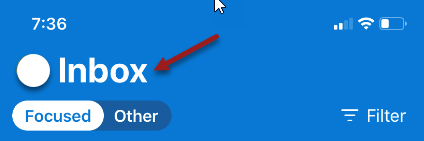
2. Click on Inbox at the top.
3. Click on the gear in the lower left-hand corner to open Settings.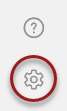
4. Click Add Account then tap Add a Shared Mailbox.
5. Enter the eMail address of the Shared Mailbox and click Add Shared Mailbox.
Comments
0 comments
Article is closed for comments.