
To set up your Genius M400, complete the following steps:
Connect your device to your network
Attach the utility cable
- Turn your Genius M400 upside down and place it on a flat, stable surface.
-
Remove the rear cover by sliding it up and lifting it off.

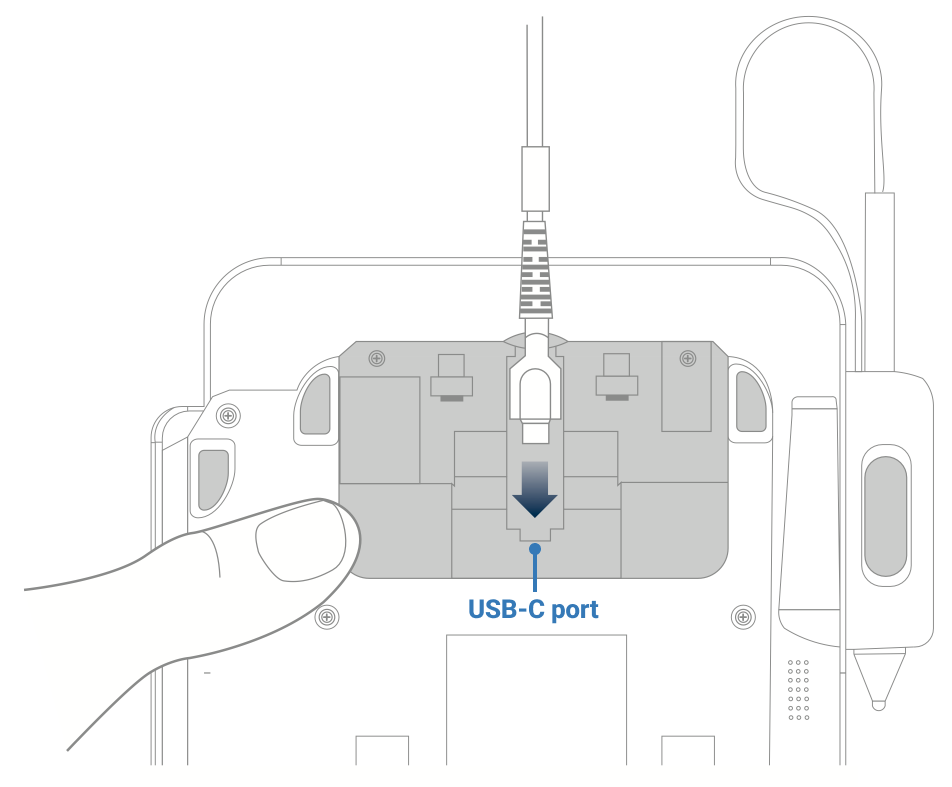
- Attach the utility cable to your Genius M400 by inserting the USB-C connector into the USB-C port.
- Insert the USB-C cable into the back of your device. Make sure that the cable is in the groove above the USB-C port.
-
Slide the rear cover onto your device until it clicks.

Attach the power adapter
-
- Insert the 12V DC power adapter into the 12V DC port on the utility cable.
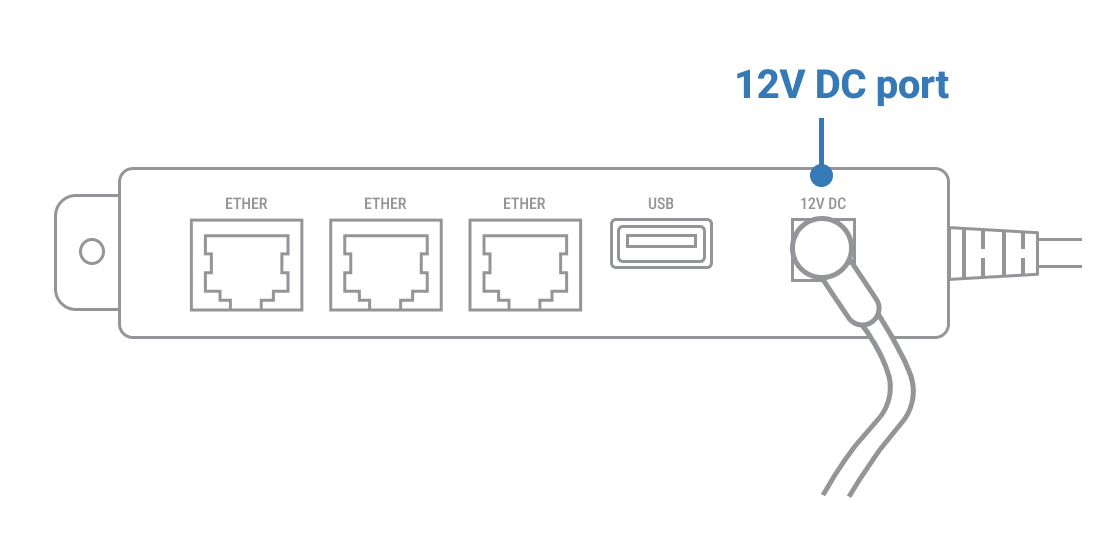
- Plug the 12V DC power adapter into a power supply. Your device will turn on.
- Insert the 12V DC power adapter into the 12V DC port on the utility cable.
Connect your device to your network
You can connect your M400 to your network using the following connection types:
-
-
- Ethernet
- Wi-Fi
-
Note: Your device is configured to receive a dynamic IP address by default. If you need to configure a static IP address, go to Ethernet
-
-
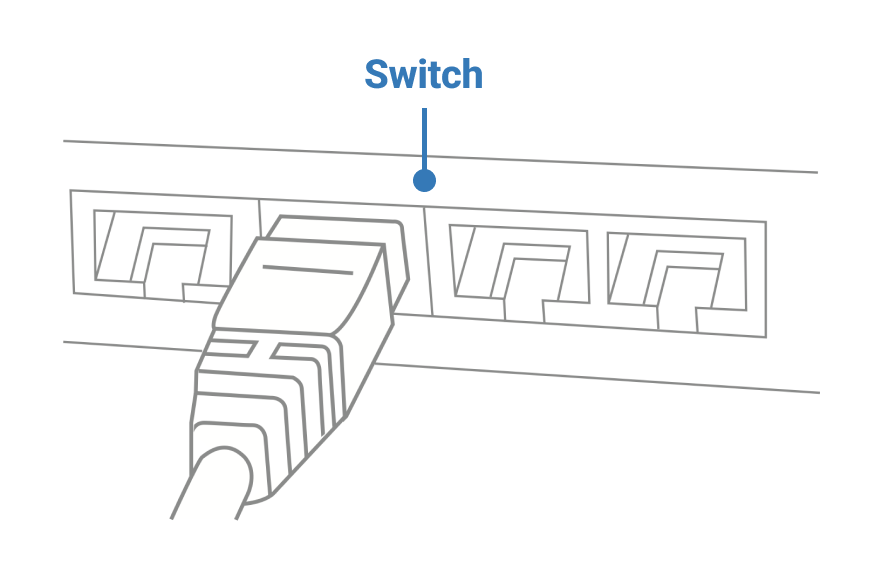
Insert one end of the Ethernet cable into an available port on your router or switch.
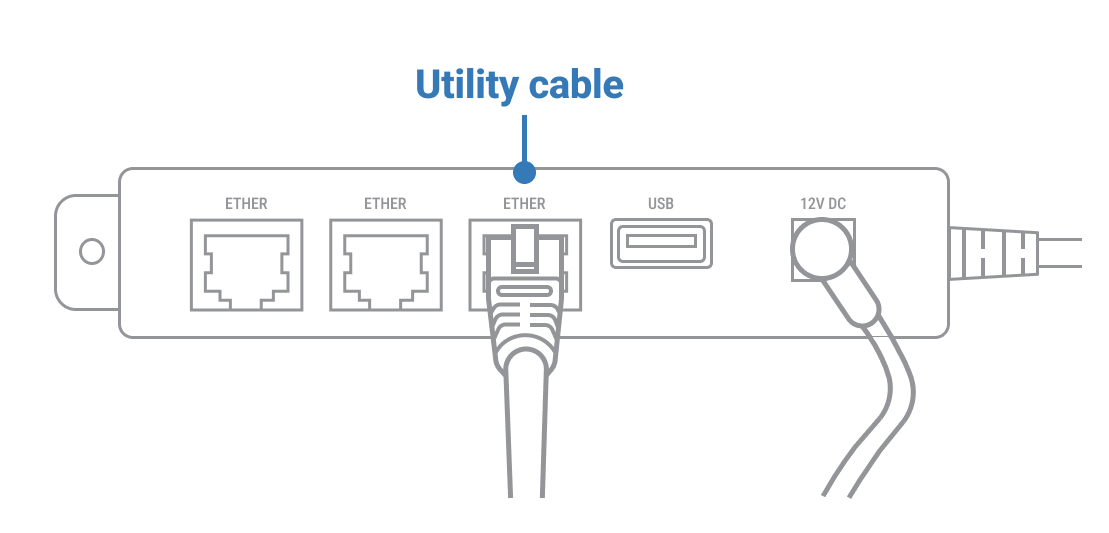
- Insert the other end of the Ethernet cable into an ETHERNET port on the utility cable.
-
Ethernet
- Use the keypad to press1,5, and 9 at the same time.
-
Tap Com Control.
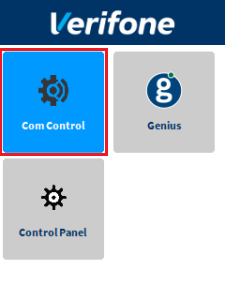
- Tap LAN.
- TapConfiguration, and then use the keypad to enter the password. The default password is 200331.
- Tap OK.
- Tap IPv4.
- Tap DHCP, and then tap No.
- Set values for the following fields:
- IP address
- Subnet mask
- Gateway IP address
- DNS 1
- (Optional)DNS 2
Note: If you do not have 12 digits in your IP address, use zeros to complete your IP address. For example, to use the IP address 192.168.2.35, enter 192.168.002.035.
Apply your settings and return to the home screen
- Tap
twice.
- Tap Save, and then tap OK.
- Tap Yes, and then tap OK.
- Tap
- Tap Exit, and then tap Yes.
- Tap Genius.
Check your connection
- Use the keypad to press 1, 5,and 9 at the same time.
- Tap Com Control.
- Tap LANorWiFi.
- Tap Status.
- Confirm that the Status field shows “Up.”
– If the Status field shows “Down,” contact the Genius Support Team.
Configure your POS
To configure your POS, you need the following:
- Your Merchantware credentials, including your:
- – Merchantware name
- – Site ID
- – Key
Configure the device volume
To configure the volume of the beeps:
- Press 1, 5, and 9 at the same time.
- Control Panel
- Sysmode
- Supervisor
- Enter password, 1166832
- Administration
- Sound Utilities
- Volume
Then select the desired volume. To save changes, press the back icon at the top left until "Run Application" appears, then select it.
Comments
0 comments
Article is closed for comments.